AI presentation tools compared: Gamma, Beautiful.ai, Copilot, Gemini and Canva
Five ways to get a first draft of a deck from AI: what each is good at, what it costs, what the free plan really gives you, and when the tool you already pay for is enough.

In short
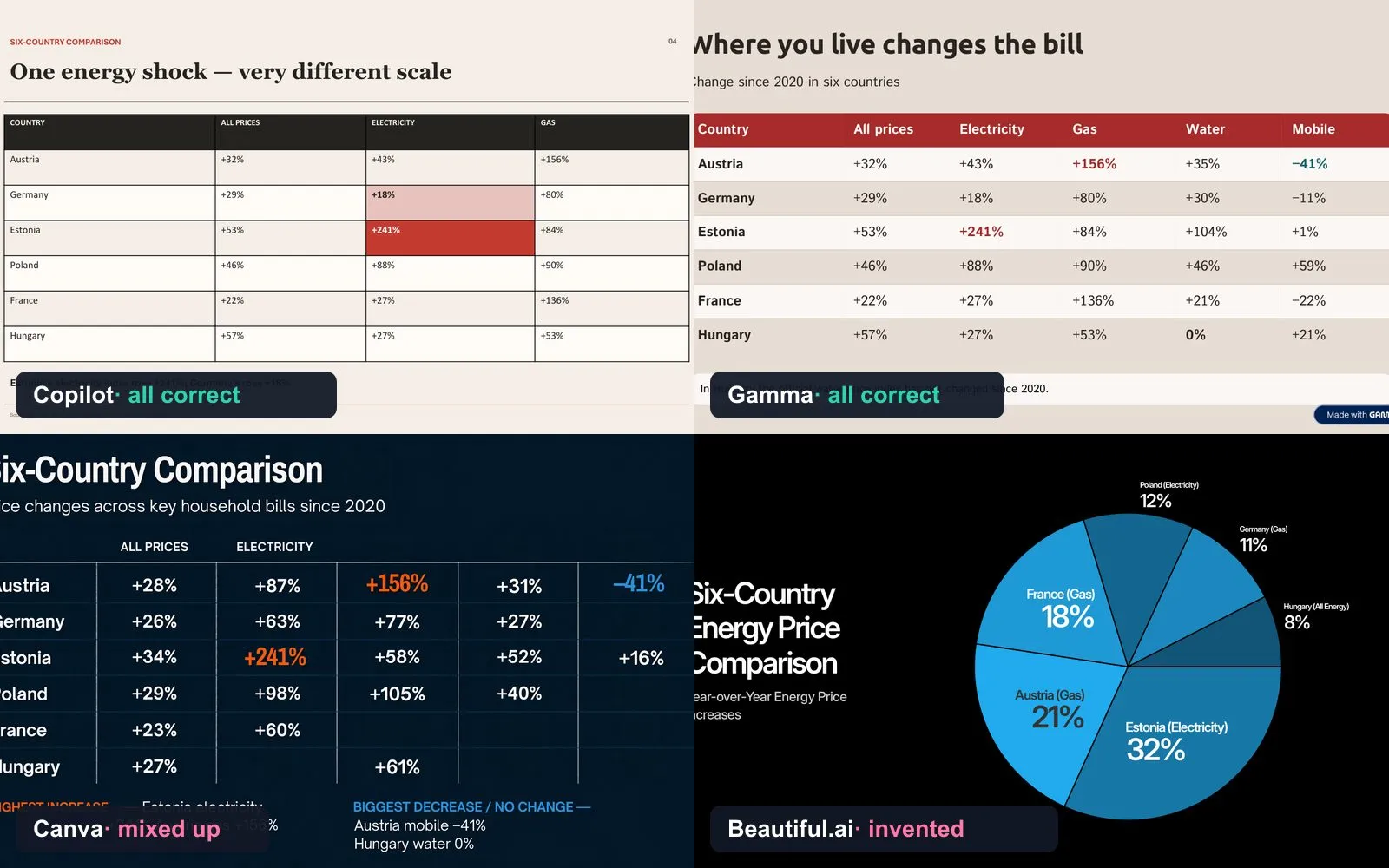
- We tested four of them on the same one-page document: Copilot and Gamma copied every figure correctly; Canva scrambled the country table and Beautiful.ai invented new figures and a map styled as a Eurostat graphic.
- If your company runs on Microsoft 365 or Google Workspace, start there. Copilot in PowerPoint and Gemini in Slides keep the deck in your company's files and templates.
- Gamma is the fastest from a prompt or a document to a finished-looking deck. The free plan gives 400 credits and up to 10 slides per prompt, and exports to PowerPoint, PDF and Google Slides. Paid plans start at €8 a month billed yearly.
- Beautiful.ai is for decks that must look consistent: its slides re-arrange themselves as you add content. There is no free plan, only a 14-day trial that needs a card and charges you in full if you don't cancel; Pro costs $14.50 a month billed yearly.
- Canva is the best value if you also make social posts and documents. The free plan includes up to 20 AI uses; Pro costs $144 a year.
- Every tool produces a draft, not a finished deck. Check every number, and don't upload confidential client material to a tool your employer hasn't approved.
Making slides is the kind of work AI should take off your hands. You have the content. What eats the evening is the layout, the fonts, the picture that doesn’t quite fit. Every big office suite now offers to do it for you, and a handful of start-ups do nothing else.
They are not the same. Some are built for speed, some for brand control, some for people who never leave PowerPoint. Here is how to choose.
How we compared them: from each company’s own pricing and help pages, checked on 5 October 2026 and again on 21 October 2026. Prices change often, and Gamma shows prices in euros to visitors in Europe. We have no affiliate deals with any of these companies; we have since applied to Gamma’s affiliate programme and to the PartnerStack network, through which Beautiful.ai runs its programme. Our rankings and test results don’t depend on it.
The short answer
| If you… | Use | Why |
|---|---|---|
| work in a Microsoft 365 company | Copilot in PowerPoint | Uses your company templates and Word files, under your employer’s data rules |
| work in a Google Workspace company | Gemini in Google Slides | Drafts slides and images from your Drive files |
| need a good-looking deck fast, from a prompt or a document | Gamma | Fastest to a finished look; exports to PowerPoint and Google Slides |
| make many decks that must look the same | Beautiful.ai | Slides keep their layout as you edit; strong team templates |
| also make social posts, flyers and documents | Canva | One subscription for everything visual |
We tested them: same document, four tools
On 22 October 2026 we gave Copilot, Gamma, Canva and Beautiful.ai the same one-page document of official Eurostat figures and the same instruction: eight slides, use only the facts in the document. We accepted the first draft without edits and checked every number.
| Copilot in PowerPoint | Gamma | Canva | Beautiful.ai | |
|---|---|---|---|---|
| Time to first draft | 9 min | under 1 min | 1 min 20 | 35 sec |
| Six-country table (30 figures) | all correct | all correct | 3 correct, 9 empty | replaced with invented figures |
| Invented content | none | decorative images only | none in the text | charts, a pie and a “Eurostat” map |
| Editable in PowerPoint | real charts and tables | real table; chart is a picture | text boxes | text boxes |
The two best-looking decks were the least accurate. Whatever you use, check every figure in tables and charts against your source. Gemini in Google Slides wasn’t in the test: on our account it needed a paid Google AI plan. Read the full test, with the slides →
Copilot in PowerPoint
If your employer pays for Microsoft 365 Copilot, this is the safe default. You can ask it to build a deck from a prompt or from a Word document, and it can use your organisation’s template, so the result already carries the company look. You keep editing by chatting with it.
Microsoft’s own limits are worth knowing. One output language per presentation. When you build from a file, you can’t add extra instructions in the same prompt. It works best with Word documents under 24 MB.
For individuals: Copilot in Word, Excel and PowerPoint is included in Microsoft 365 Personal ($99.99 a year), Family ($129.99, AI for the subscription owner only) and Premium ($199.99, with much higher usage), with usage limits. US prices.
In our test: slowest (9 minutes), but every figure was right, and it was the only tool to build real, editable PowerPoint charts.
Best for: people whose finished deck has to live in PowerPoint anyway.
Gemini in Google Slides
Gemini can generate new slides and images, write or rewrite text, summarise a deck and pull in material from your Drive files. It needs an eligible Google Workspace or Google AI plan. Check what your admin has switched on.
Not in our test: on our account, Gemini in Slides needed a paid Google AI plan.
Best for: teams that already write and share everything in Google Docs.
Gamma
Gamma starts from the content, not the slide. Paste an outline, a document or a PDF, or just describe the talk, and it builds the whole deck with layout and pictures. You can also import PowerPoint files and export back to PowerPoint, PDF, PNG and Google Slides. The same tool makes simple web pages and documents.
| Plan | Monthly | Billed yearly | What you get |
|---|---|---|---|
| Free | €0 | €0 | 400 credits at sign-up, up to 10 slides per prompt, Gamma branding |
| Plus | €10 | €8 a month | 1,000 credits a month, up to 100 slides per prompt, no branding |
| Pro | €24 | €18 a month | 4,000 credits a month, custom branding, analytics, API |
| Ultra | €86 | €77.33 a month | 20,000 credits a month, most advanced models |
Prices per person, shown to visitors in Europe; tax may be added. Gamma says paid plans include unlimited everyday AI creation under fair use; credits pay for premium features such as its agent, advanced models and the API.
Watch out for: decks that look finished before they are right. Gamma is very good at making thin content look polished.
In our test: under a minute, every figure right; it added decorative AI images and, on the free plan, a “Made with Gamma” badge. The test used 54 of the 400 free credits.
Best for: freelancers, founders, teachers and anyone who needs a decent deck tonight.
Beautiful.ai
Beautiful.ai’s idea is “smart slides”: more than 300 layouts that rearrange themselves as you add or remove content, so a chart or a team page never falls apart. The AI drafts decks, writes and translates text and makes images. It imports and exports PowerPoint and exports PDF.
- Pro: $14.50 a month billed yearly, or $45 for a single month. One person.
- Team: $40 per person a month billed yearly ($50 monthly), for 2 to 20 people, with shared templates and slide libraries, version history and viewer analytics.
- No free plan, but a 14-day trial with full access. It needs a payment card, and you are charged in full if you don’t cancel before the trial ends, so set a reminder.
In our test: the fastest (35 seconds) and best-looking draft, but it replaced our country table with figures that weren’t in the document and added a map styled as a Eurostat graphic. Check everything it produces.
Best for: sales and marketing teams who send many decks that must all look on-brand.
Canva
Canva is not a presentation tool first, but many people use it as one. Its AI features help with design, images and text, and decks can be downloaded as PowerPoint files.
- Free: up to 20 AI uses, 5 GB of storage.
- Pro: $144 a year, about ten times the AI uses, premium templates and media.
- Business: $250 per person a year, with brand kits and team controls.
Teachers and non-profits can get premium features free or at a discount.
In our test: a strong design and correct EU figures, but only 3 of 30 cells in the country table were right. It used 20% of the free plan’s monthly AI allowance.
Best for: small businesses and creators who need one tool for every kind of visual.
Five rules for any AI deck
- Start with the outline, not the prompt. Write the five points you want people to remember. Give the tool that, not “make a deck about our Q3 results”.
- Check every number and name. AI tools fill gaps with plausible inventions. A wrong figure on slide 4 costs more than an ugly layout.
- One idea per slide. AI loves to fill space. Delete half the text it writes.
- Mind what you upload. Client data, unreleased results and personal details belong only in tools your employer has approved. The company’s own Copilot or Gemini is usually the safer place for them.
- Keep it portable. Export to PowerPoint or PDF once you’re done, so the deck doesn’t depend on one subscription.
More practical guides
Sources
- Gamma: Plans and pricing (checked 21 October 2026)
- Beautiful.ai: Pricing (checked 21 October 2026)
- Microsoft: Compare Microsoft 365 plans (checked 21 October 2026)
- Microsoft Support: Create a new presentation with Copilot in PowerPoint
- Google Docs Editors Help: Collaborate with Gemini in Google Slides
- AI Beat: hands-on test of four AI slide makers (22 October 2026)
- Canva: Pricing (checked 21 October 2026)
More guides
- AI meeting note-takers compared: Otter, Fireflies, Fathom, Granola, MeetGeek, Notuly and the built-ins
- We gave one meeting to four AI note-takers. Two knew who had to do what
- We gave four AI slide makers the same document. Two of them made up the numbers
- AI audio tools compared: voice, clean-up, editing and music
- We cleaned one noisy 35-minute recording with Diffio and Adobe. Background voices decided it
- AI video tools compared: generators, presenters and editors
- AI data analysis tools compared: from spreadsheets to big data
- AI image tools compared: ChatGPT, Gemini, Midjourney, Firefly, Ideogram, Canva and more
Comments
What do you think? No account needed. Please be kind; comments that attack people are removed.
No comments yet. Be the first.